

Open a Checkpoint
- Choose the branch you want to inspect.
- Find the commit with the checkpoint.
- Open the checkpoint detail view.
- Use Sessions to inspect the prompt, transcript, tool activity, and session metadata.
- Use Changes to read the files and diff connected to the checkpoint.
Branch View
Open a repository to see its branch list. Each branch shows recent commits grouped by day, with checkpoints captured on each commit. Each checkpoint row shows:- commit SHA
- commit message
- agent
- code changes
- checkpoint count, when more than one checkpoint is attached
- author
Checkpoint Detail
Open a checkpoint to inspect the detail view.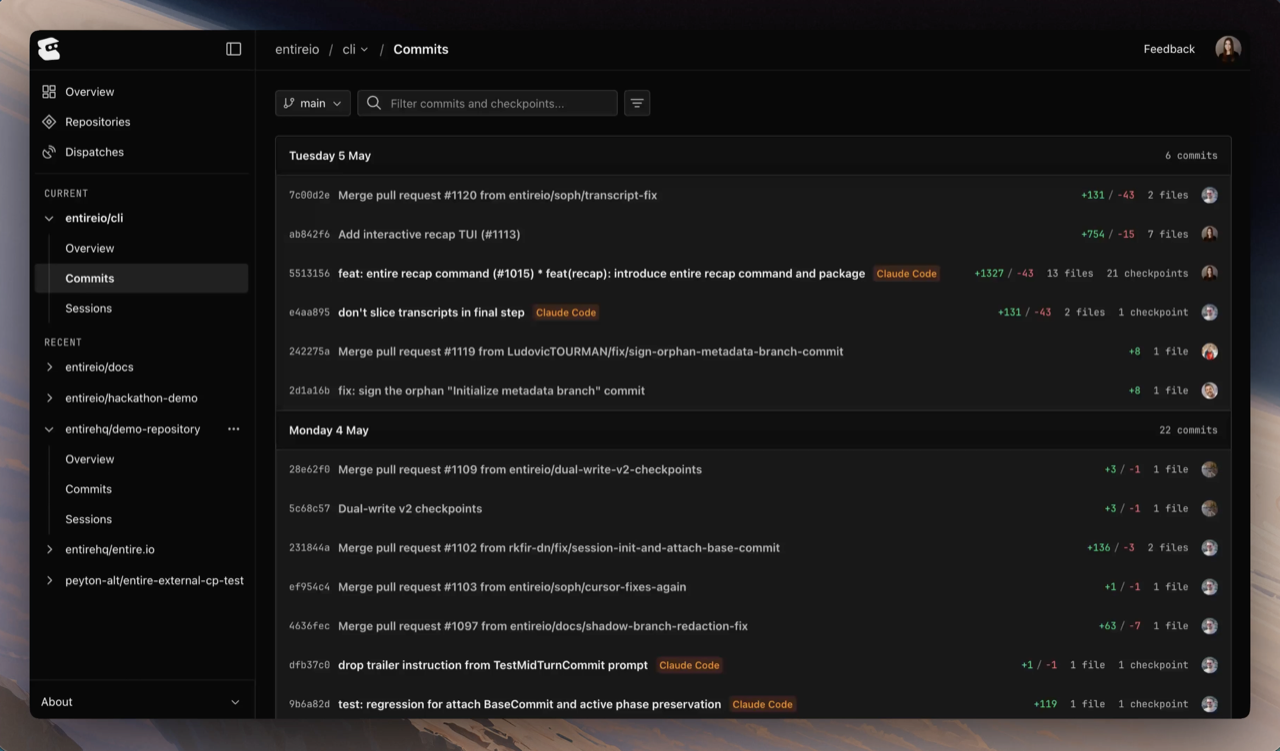
- Sessions: prompts, transcript, tool activity, session metadata, and any sessions that contributed to the checkpoint
- Changes: modified files, with a file tree and diff view
Open from a Commit
You can open a checkpoint from a commit URL:Entire-Checkpoint trailer, the checkpoint ID also appears in the commit message:
Continue With
Inspect in the CLI
List, explain, and measure checkpoints locally.
Sessions in entire.io
See the transcript and tool calls behind a checkpoint.